



A computer that runs slowly can make everyday tasks frustrating. Programs may take longer to open, storage space can become limited, and outdated hardware drivers may cause compatibility problems. Regular computer maintenance can help reduce these issues and keep a Windows PC running smoothly. With tools from IObit, users can simplify routine maintenance by cleaning unnecessary files and keeping drivers up to date.
Why Regular PC Maintenance Matters
Over time, computers collect temporary files, browser data, leftover installation files, and other unnecessary items. Although some temporary files serve a useful purpose, accumulated clutter can consume storage space and make system maintenance more difficult.
A regular maintenance routine helps users identify unnecessary files, review installed applications, and check for outdated software components. These steps can also make it easier to identify the actual cause of performance problems instead of assuming that every slow computer needs new hardware.
Use a PC Cleaner to Remove Unnecessary Files
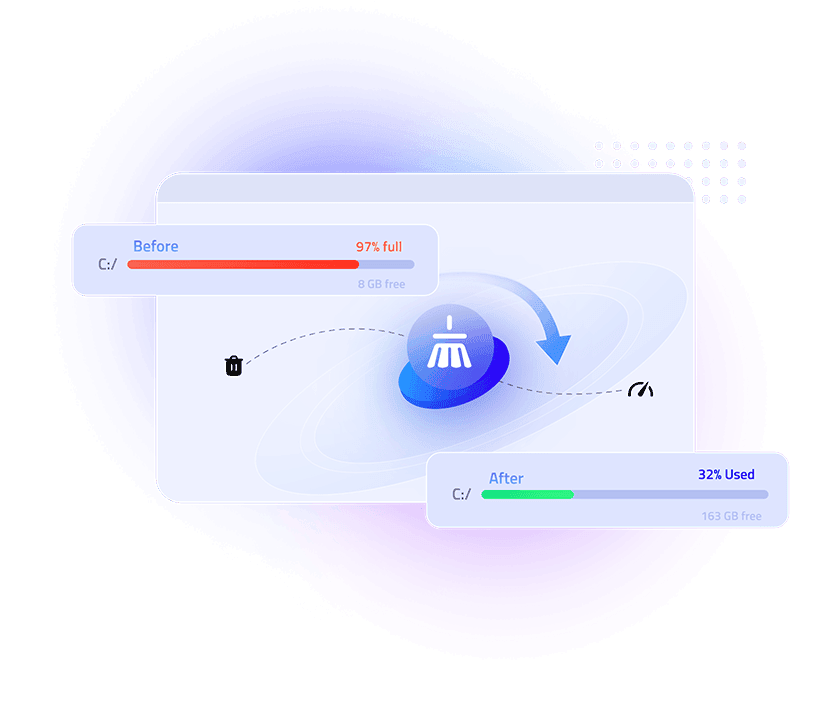
A PC cleaner can help users identify temporary files and other digital clutter that may no longer be needed. Removing appropriate files can free up storage space and make routine system maintenance easier.
Before cleaning a computer, users should review the categories selected for removal. Temporary files and browser caches are often reasonable places to start, while personal documents and files needed by specific applications should be protected.
IObit offers PC maintenance software designed to help Windows users manage common cleanup tasks. When choosing a cleaning tool, look for clear explanations of what will be deleted and options to review the results before confirming a cleanup.
It is also important to understand that cleaning unnecessary files does not automatically make every computer faster. Performance depends on several factors, including available memory, storage health, background applications, and the age of the hardware.
Keep Hardware Working Properly with Driver Updates
Drivers allow Windows to communicate with hardware components such as graphics cards, audio devices, network adapters, and printers. When a driver is outdated, incompatible, or corrupted, users may experience connectivity problems, missing features, or unexpected device behavior.
Using a tool to update drivers can help users identify available driver updates and manage the process more conveniently. IObit’s driver-management tools are designed to help Windows users check driver status and find compatible updates.
However, newer drivers are not always necessary for every device. Users should prioritize security fixes, compatibility improvements, and updates that address an existing problem. Before installing a driver, check the device model, Windows version, and source of the update.
Creating a restore point where supported and backing up important files can provide additional protection before making significant system changes.
Build a Simple Computer Maintenance Routine
Consistent maintenance is generally more useful than waiting until a computer develops a serious problem. A practical routine can include the following steps:
- Review storage: Check how much free space remains and identify large files that are no longer needed.
- Clean carefully: Use a trusted PC cleaner to review temporary files and other removable clutter.
- Check installed applications: Uninstall software that is no longer required, taking care not to remove essential components.
- Review driver status: Check for relevant updates to graphics, audio, networking, and other hardware drivers.
- Install Windows updates: Apply appropriate operating-system updates and security patches.
- Restart and test: After major changes, restart the computer and confirm that important applications and devices work correctly.
This approach makes it easier to track changes and determine whether a particular maintenance task has improved the computer’s performance.
Why Consider IObit for PC Maintenance?
IObit provides Windows utilities intended to help users manage common computer maintenance tasks. Depending on the product, these tools can assist with cleaning unnecessary files, managing applications, or checking device drivers.
Using appropriate utilities can reduce the effort involved in routine maintenance, but users should review product features, system requirements, and available options before installing software. Downloading utilities from the official website also helps reduce the risk of installing modified or untrusted software.
No single maintenance tool can solve every performance issue. Persistent slowdowns may require checking startup applications, available memory, storage health, malware protection, or hardware limitations.
Final Thoughts
Keeping a Windows computer in good condition starts with simple, regular maintenance. Removing unnecessary files can help manage storage, while reviewing driver updates can address compatibility and device issues. Together with Windows updates and sensible software management, these practices support a more reliable computing experience.
IObit offers tools that can help users organize these tasks. By choosing appropriate cleanup options, verifying driver compatibility, and reviewing changes before applying them, users can maintain their PCs more confidently and avoid unnecessary system modifications.